Most small businesses only find out whether their backups work on the worst day of the year: a failed laptop, a flooded office, or a ransomware message on the screen. The Canadian Centre for Cyber Security compares backups to an insurance policy. They keep your data available, and they let you recover quickly when something goes wrong.
This guide covers what to back up, where to keep it, how often, and how to prove it works. It draws on guidance from the Canadian Centre for Cyber Security, Get Cyber Safe (Government of Canada) and the U.S. Cybersecurity and Infrastructure Security Agency (CISA). Sources are listed at the end.
A backup is a separate copy you can restore from
Services like OneDrive, Google Drive and Dropbox mirror whatever happens on your computer, including deletions and files scrambled by ransomware. The University of California, Berkeley’s information security office points out that sync software will copy encrypted files like any others, and says sync services should not be your long-term backup. Sync is still useful for sharing and access. Just don’t count it as your safety net.
The Cyber Centre advises keeping backups separate from the computer they protect, either on an external device or in cloud storage that is protected by a strong password or passphrase and multi-factor authentication.
Decide what matters first
The Cyber Centre recommends identifying your business-critical data, meaning the information you need to keep operating. For most small businesses in the Okanagan, that usually includes:
- Customer and supplier records
- Accounting and bookkeeping files
- Quotes, invoices and contracts
- Your website files and database
- Email and calendars, if they live with a provider and not only on your computer
- Project files, photos and designs
Write the list down and note where each item lives. Get Cyber Safe suggests taking stock of your devices and digital assets, including who holds the logins.
The 3-2-1 rule
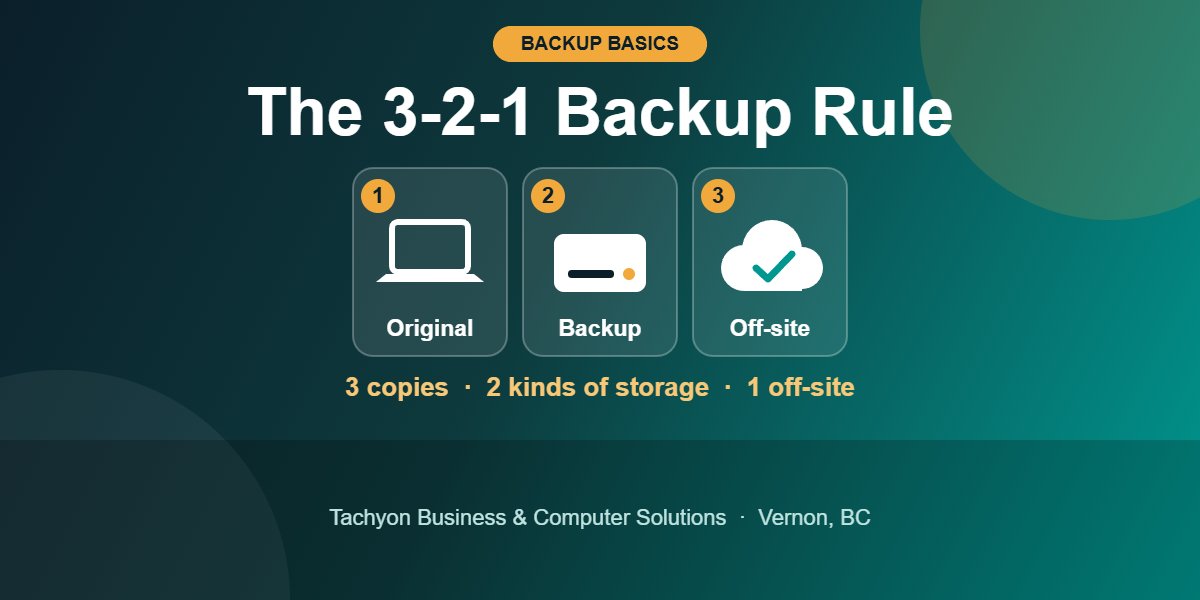
The Cyber Centre describes the 3-2-1 rule this way: keep three copies of your information (the original plus two backups), on two different types of storage, with one copy kept off-site.
A simple example for a small office: the original files on your work computer, one backup on an external drive, and one backup in a cloud backup service that uses multi-factor authentication. Get Cyber Safe adds a useful reminder: even if you use a cloud service, back up your most important data to a second storage device, because the best backup has its own backup.
Keep one copy offline
CISA recommends maintaining offline, encrypted backups of critical data and testing them regularly. The reason is that many ransomware variants look for backups they can reach, then delete or encrypt them. The Cyber Centre makes a similar point: offline backups stay unaffected by many threats that can compromise every device on your network.
The Cyber Centre also warns that network-attached storage (NAS) devices can be attacked, and that removable media should be disconnected once the backup finishes. One practical approach is to rotate two external drives, keeping one disconnected and stored away from the office.
How often should you back up?
Get Cyber Safe recommends automatic backups, at least weekly. The Cyber Centre suggests setting the frequency (daily, weekly or monthly) in a written backup policy. A helpful question: if this computer died tonight, how much work would we have to redo? If the honest answer is more than a day or two, back up more often. Automatic backups beat remembering to do it by hand.
Test your restore
Both CISA and the Cyber Centre say to test your backups. A backup you have never restored from is an assumption. At least once a year, and after any big change to your systems:
- Pick five real files, including one large file and one from a long time ago.
- Restore them to a different folder, not over the originals.
- Open each one and confirm it is complete.
- Note how long it took and who did it.
- Write down the restore steps, and where the backup passwords or recovery keys are kept.
If you use a cloud backup provider
Before you trust one with your business records, check these points:
- Security and privacy. Get Cyber Safe advises reviewing the provider’s privacy policy and security features. The Cyber Centre says an off-site vendor should offer encryption, incident management processes and a disaster recovery plan.
- Where the data is stored. Some organizations have regulatory or policy requirements to keep data in Canada, so ask where the provider stores it.
- Your own account. Use a strong passphrase and multi-factor authentication. The Cyber Centre notes that your organization stays responsible for protecting its data, even when a provider holds it.
What backups will not do
Backups will not stop someone from stealing or leaking your data. The Cyber Centre notes that, and also that paying a ransom does not guarantee you get access back. Backups work alongside software updates, multi-factor authentication and staff who know how to spot phishing.
For a printable version of the points above, see the Annual backup check on our Tech Checklists page.
Want a hand setting this up?
Tachyon Business & Computer Solutions helps businesses in Vernon and across the Okanagan set up and check their backups. That includes ClientVaultPro, our own managed backup service. Contact us and we will talk through what fits your business.
Sources
All checked October 14, 2026.
- Canadian Centre for Cyber Security, Tips for backing up your information (ITSAP.40.002)
- Government of Canada, Get Cyber Safe, Quick guide to cyber security for small business
- CISA, #StopRansomware Guide
- University of California, Berkeley, Information Security Office, Data Syncing Services